- FontOps
- Find fonts
Font Picker
A small search button (🔍) beside every TMP_FontAsset field — pick from your palettes, your installed fonts, or the provider catalogs, each option typeset in its own face, assigned straight into the field.
Why it exists
Unity's default object-picker dropdown becomes unreadable past ~10 TMP_FontAssets, and it can only show what's already in the project. The inline picker replaces that workflow at the exact place you feel the pain: the Font Asset field itself. One click opens a searchable popup — a miniature of the FontOps window — where every entry is typeset in the font it represents, and fonts you don't have yet can be installed and assigned in the same click.
Quick use
- Select any GameObject with a
TextMeshProorTextMeshProUGUIcomponent (multi-selection works too). - Click the small magnifying-glass button (🔍) beside the Font Asset field in Main Settings.
- Type to filter, then click an entry. The font is assigned to the field immediately, with full Undo. Esc closes the popup.

The popup
The popup is a small version of the FontOps window: a header with OPEN FONTOPS ↗, a search box with ✕ (clear) and ♥ (favorites), one scrolling list in three sections, and a footer with the page controls and the catalog count. Every entry is typeset in the font it stands for.
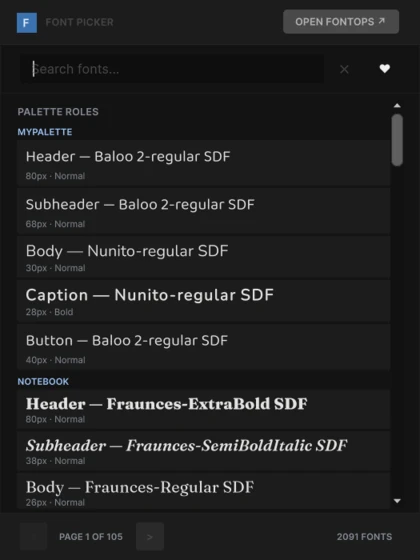
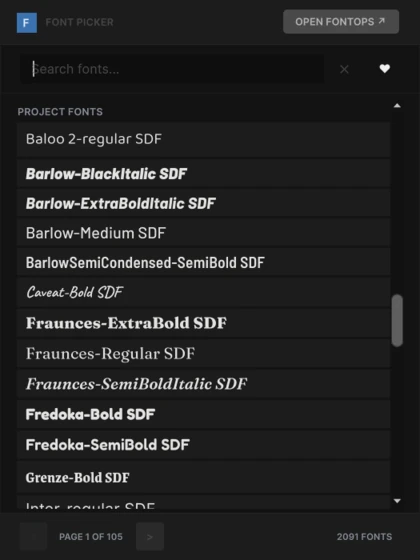
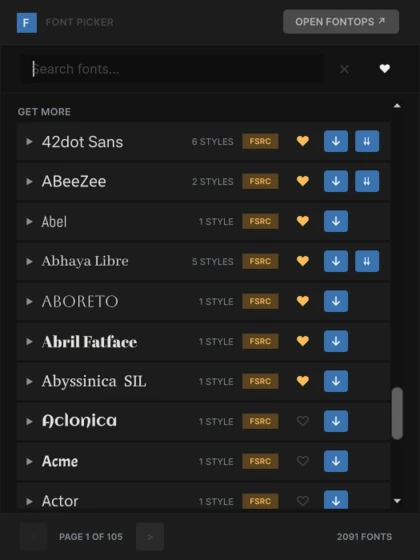
These captures come from a project with the Get Started sample and a palette of its own, so PALETTE ROLES lists MyPalette and the sample's five palettes (Notebook is the first of them), and PROJECT FONTS lists the sample's fonts too.
The three sections
| Section | What it shows | On click |
|---|---|---|
| PALETTE ROLES | Every role (with an assigned font) from every FontPaletteAsset in the project, grouped under its palette's name, typeset in the role's face and style, with size and style as metadata. The section only shows when a palette has roles |
Assigns the role's font |
| PROJECT FONTS | Every TMP_FontAsset in the project, A to Z, typeset via its sourceFontFile. The currently-assigned font is marked with a blue accent bar. Extra Fontsource subsets aren't listed as fonts of their own: a style that has one shows it under its name, as in + cyrillic fallback |
Assigns that font |
| GET MORE | Not-yet-installed families from the provider catalogs (Fontshare, Fontsource, and Google Fonts once you've added an API key), merged into one list with the same source priority and licences as the Search tab's ALL view. Each row shows the style count, a colored source badge, and a favorite toggle. 20 per page, with pagination in the footer. A family is hidden once the style ↓ would install is in that catalog's download folder | Clicking the row expands its style list, each style installable individually. ↓ installs the Regular style (or the first style, if there is no Regular; on a style row, that style) and assigns it; ⇊ installs all styles and assigns the one ↓ would. A family with one style has only ↓. Both download the TTF(s) with the licence file and generate TMP SDF assets honoring your Settings atlas options — one click from catalog to component. The font then shows in My Fonts, and an open FontOps window picks it up at once |
Search & favorites
- Search filters all three sections at once; ✕ clears it. Typing a palette's name keeps all of its roles.
- The ♥ toolbar toggle narrows GET MORE to your favorites. Hearts on catalog rows toggle favorites — the same list the main window's FAVORITES pill uses, shared via EditorPrefs. An open FontOps window updates as you click.
- OPEN FONTOPS ↗ in the header jumps to the full window for variant-level installs, specimen pages, and licensing details. Search opens on what you typed in the picker or, with an empty search box, on the GET MORE family you last expanded (source set to ALL).
Behavior details
- Undo: assignments go through the serialized property, so
Ctrl+Zrestores the previous font. - Prefabs: assignments on prefab instances are recorded as instance property modifications, so they survive and show as overrides.
- Multi-selection: with several text components selected, one pick assigns the font to all of them.
- Material: TMP swaps to the new font's default material preset automatically when the font field changes.
- TMP Essentials: catalog installs need the TMP Essential Resources; if they're missing, the picker offers to open the import window.
- Tooltips: every control explains itself on hover — catalog rows show category, style count, and license; the ↓/⇊ buttons name exactly what they will install.
- Movable: drag the header background to move the popup — it opens anchored to the field, which can sit right on top of the text you're styling.
- Hover preview: rest the pointer on a row and a window beside the picker shows that font in the game-UI and app screens it suits, with one it doesn't suit and the reason in the last cell (see Hover UI preview).
Picker vs FontPaletteApplier
The picker assigns the font only. FontPaletteApplier drives the full role (font + size + style + colour + spacing) from a palette and keeps following it in open scenes and the open prefab; texts in closed scenes catch up when you press Apply to Text Component on the applier or use APPLY… in My Fonts › Palettes. Use the picker for direct one-off choices; use the applier when the component should obey your type system. The picker's PALETTE ROLES section is the bridge: it surfaces palette fonts without requiring the component to carry an applier.
How it hooks into the inspector
FontOps registers a PropertyDrawer for TMP_FontAsset. TextMeshPro's own inspectors draw the Font Asset row through Unity's property system, so the search button appears beside the field without replacing or rebuilding any inspector — every TMP control behaves exactly as before. A side benefit: the button appears beside every serialized TMP_FontAsset field drawn the standard way (fallback lists, your own components), so the picker is available anywhere a font asset can be assigned. It is editor-only: nothing is added to your build.
Troubleshooting
GET MORE is missing or empty
GET MORE needs a connection: the catalogs, previews and installs all come from the providers. Google Fonts families join the list once you add an API key in Settings; Fontshare and Fontsource need no key.
A palette doesn't show under PALETTE ROLES
The section lists roles that have a font. Give the palette's roles fonts in My Fonts › Palettes and they show up the next time the popup opens.
A catalog install asks for TMP Essential Resources
FontOps makes TMP font assets for every install, and those need TextMeshPro's Essential Resources. When they're missing, the picker offers to open TextMeshPro's import window. Import them once per project.