- FontOps
- Type system
Role naming guide
How to name your typographic roles so your team speaks the same language, and the names FontOps recognises when it applies a palette.
Why role names matter
Role names are how your team communicates about typography. A good name tells you where and how a style should be used without opening the inspector. Consistent naming also makes the Palette Extractor, APPLY… and compliance checking more useful. The Text Auditor names the closest role for a failing text, so a good role name tells you at once what that text should be. APPLY… reads role and GameObject names to recognise each text's role (see Names FontOps recognises).
Common naming systems
There is no single “right” system. Pick one that fits your project and stick with it.
1. Semantic, by purpose
Names describe the function of the text, not its appearance. This is the most common system and what most design tools (Figma, Material Design) use.
| Role Name | Typical Use | Example |
|---|---|---|
Display | Hero text, splash screens, marketing headers | Game title on main menu |
Header | Section or screen titles | “SETTINGS”, “LEADERBOARD” |
Subheader | Secondary headings within a section | “Audio Settings”, “Team Roster” |
Body | Main readable text, descriptions, paragraphs | Item descriptions, tutorial text |
Caption | Small supporting text, timestamps, metadata | “Last played 2 hours ago” |
Label | Field labels, form names, short identifiers | “Username:”, “Score:” |
Button | Interactive button text | “PLAY”, “CONFIRM”, “CANCEL” |
Overline | Small all-caps text above a heading | “CHAPTER 3” above “The Dark Forest” |
Tooltip | Hover/contextual help text | “Press E to interact” |
Badge | Status indicators, tags, counters | “NEW”, “3/10”, “MVP” |
2. By size (T-shirt sizes)
Names describe relative size. Simple and unambiguous, but doesn’t communicate purpose. Works well for small teams or prototyping.
| Role Name | Size Range | Typical Use |
|---|---|---|
XXL | 48–72px | Splash / hero text |
XL | 32–48px | Screen titles |
LG | 24–32px | Section headers |
MD | 16–24px | Body text, descriptions |
SM | 12–16px | Captions, labels |
XS | 8–12px | Fine print, legal, badges |
3. Hierarchical (H1–H6)
Borrowed from HTML/web conventions. Straightforward for developers but less intuitive for designers.
| Role Name | Equivalent | Example |
|---|---|---|
H1 | Display / Page Title | Main menu title |
H2 | Section Header | Settings category |
H3 | Subsection Header | Audio > Music Volume |
Body | Paragraph text | Descriptions |
Small | Fine print | Copyright, version |
4. By context (screen or feature prefix)
For large projects with distinct visual areas (e.g., HUD vs. menus vs. dialogue). Prefix the role name with the context.
| Role Name | Where | Example |
|---|---|---|
HUD/Score | In-game overlay | Score counter |
HUD/Timer | In-game overlay | Countdown clock |
HUD/Ammo | In-game overlay | Ammo count |
Menu/Title | Menu screens | Screen name |
Menu/Body | Menu screens | Description text |
Menu/Button | Menu screens | Button labels |
Dialog/Speaker | Dialogue system | Character name |
Dialog/Line | Dialogue system | Spoken text |
Dialog/Choice | Dialogue system | Player response options |
Scoreboard/Name | Leaderboard | Player name column |
Scoreboard/Stat | Leaderboard | K/D/A numbers |
Scoreboard/Header | Leaderboard | Column headers |
Real-world examples
Mobile casual game
A party game with bright, bouncy UI. One font family, multiple weights.
| Role | Font | Size | Style | Used For |
|---|---|---|---|---|
Display | Baloo 2 | 48px | Bold | Game title, win/lose splash |
Header | Baloo 2 | 32px | Bold | Screen titles |
Body | Baloo 2 | 20px | Regular | Rules text, descriptions |
Button | Baloo 2 | 24px | Bold | PLAY, SETTINGS, BACK |
Caption | Baloo 2 | 14px | Regular | Player count, lobby code |
Badge | Baloo 2 | 12px | Bold | NEW, 1ST, MVP |
Competitive tactical shooter
Dark UI with high information density. Two font families — sans-serif for UI, monospace for data.
| Role | Font | Size | Style | Used For |
|---|---|---|---|---|
HUD/Score | Rajdhani | 28px | Bold | Kill count, round score |
HUD/Timer | Share Tech Mono | 24px | Regular | Round timer, bomb timer |
HUD/Ammo | Share Tech Mono | 20px | Regular | 30/90 ammo display |
Menu/Title | Rajdhani | 36px | Bold | LOADOUT, OPERATORS |
Menu/Body | Rajdhani | 16px | Regular | Operator bios, patch notes |
Menu/Button | Rajdhani | 18px | Bold | READY, QUEUE, EXIT |
Scoreboard/Name | Rajdhani | 16px | Regular | Player names |
Scoreboard/Stat | Share Tech Mono | 14px | Regular | K/D/A columns |
Scoreboard/Header | Rajdhani | 12px | Bold | Column headers (KILLS, DEATHS) |
Story-driven RPG
Rich narrative with dialogue, inventory, and world-building lore. Three font families.
| Role | Font | Size | Style | Used For |
|---|---|---|---|---|
Display | Cinzel | 56px | Bold | Chapter titles, location reveals |
Header | Cinzel | 32px | Regular | Menu headers, quest log titles |
Body | Lora | 18px | Regular | Item descriptions, lore entries |
Body Italic | Lora | 18px | Italic | Flavour text, internal thoughts |
Dialog/Speaker | Cinzel | 20px | Bold | Character name above dialogue |
Dialog/Line | Lora | 20px | Regular | Spoken dialogue text |
Dialog/Choice | Lora | 18px | Regular | Player response options |
UI/Label | Nunito Sans | 14px | Regular | Stat names: STR, DEX, INT |
UI/Value | Nunito Sans | 16px | Bold | Stat values: 42, +5, 1200 XP |
UI/Button | Nunito Sans | 16px | Bold | EQUIP, SELL, USE |
Tooltip | Nunito Sans | 13px | Regular | Hover info on items/skills |
Caption | Nunito Sans | 11px | Regular | Rarity, weight, quest markers |
Minimalist puzzle game
Clean, simple. One font, few roles.
| Role | Font | Size | Style | Used For |
|---|---|---|---|---|
Title | Inter | 36px | Light | Level name, game title |
Body | Inter | 18px | Regular | Instructions, hints |
Button | Inter | 16px | Medium | RESTART, NEXT, MENU |
Counter | Inter | 24px | Bold | Move count, timer |
Names FontOps recognises
When you press APPLY… in My Fonts › Palettes, FontOps guesses the role each text plays. Names are one of its strongest clues. It reads two kinds: the name of the GameObject that holds the text, and the role names in your palette. Name both by job and Apply… gets most texts right the first time.
Keywords
FontOps splits a name into words where a lowercase letter meets a capital, and at spaces, underscores, dashes, slashes and other punctuation
(DialogueBody → dialogue, body; Caption_Version → caption, version),
then looks for these keywords. A word only has to start with one: Description counts as
desc, Dialogue as dialog.
| Reads as | Keywords |
|---|---|
| Header | title header heading headline h1 display hero banner |
| Subheader | subtitle subhead h2 h3 speaker |
| Body | body desc dialog paragraph message content story lore |
| Caption | caption label hint footnote note tooltip legend small |
| Button | button btn cta |
- The last keyword decides. FontOps reads a name from the end, so
TitleLabelreads as a Caption andLabelTitleas a Header. One exception: subtitle or subhead anywhere in a name, or h2 or h3 as a word of its own, makes it a Subheader. - A role named in the GameObject wins. When the full name of one of your roles (3+ characters, ignoring case, spaces and punctuation) appears in a GameObject's name, that is the strongest name clue. A role called
ScoreclaimsScoreText; a role calledHUD/ScoreclaimsHUD_ScoreorHudScoreText. This is how custom roles without a keyword get picked by name. - The parent's name helps. If the text's own name has no keyword (Unity's default
Text (TMP), say), FontOps reads its parent's name instead, as a weaker clue. AText (TMP)insideTitleBarleans Header. - Text inside a Button is Button text. A text with a uGUI
Buttonon itself or any parent leans strongly to your Button role, whatever its name. A text that is neither under a Button nor named like one is pushed away from the Button role.
How names combine with other clues
A name is one clue among several. FontOps weighs them all and picks the role with the best score.
- An existing applier comes first. A text whose
FontPaletteApplieralready uses a role of the same name keeps that role. If this palette has no role of that name, the old role name is read with the keywords above, so an applier onTitlemoves to this palette's Header. That is why swapping a screen to another palette is one APPLY. - Size rank. FontOps ranks the text sizes it found, largest first, and lines them up with your roles from Header down to Caption. With only one or two sizes in scope, it compares each text's point size with each role's size instead.
- Role names without a keyword (
XL,Badge,HUD/Score) are placed by their size: the largest reads as a Header, then Subheader, Body and Caption as sizes go down. Only a role named with button, btn or cta counts as a Button role. - Style and shape. Bold and italic that match a role's style help a little. ALL CAPS leans Header, Button or Caption. Two or more lines, or 60+ characters, leans Body and away from Header and Button.
- Odd ones out. A text in a font most of the others don't use, at a size nothing else uses, with no name to explain it, looks hard-coded. FontOps gives it low confidence.
What you see in Apply…
- Each row shows the role FontOps picked, a dot for how sure it is (hover the dot for the percentage), and the reason: its strongest clues, such as the name, the size rank, inside a Button or the line count.
- Guesses under 40% start unticked. When two roles score almost the same, the reason ends with close to and the runner-up.
- A text whose applier already uses this palette and role, with the ticks the APPLY mode sets, starts unticked, as Already uses Pop › Header. If its ticks differ (applied with FONTS ONLY, say), it starts ticked and the reason says what changes (see What APPLY writes). A text moving from another palette shows the swap, as Main › Caption → Pop › Caption.
- Change any role from the row's dropdown, choose Skip, or untick the row before you press APPLY.
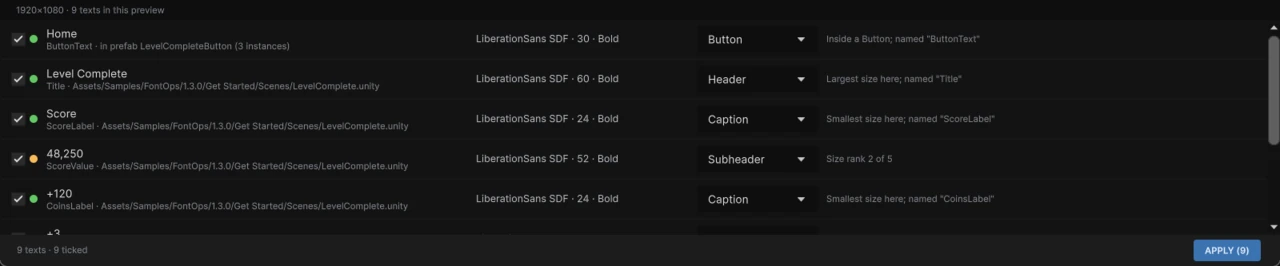
Example: the Get Started sample
The texts of the sample’s Level Complete screen are named so Apply… reads them right against the five default roles:
| GameObject | Reads as | Why |
|---|---|---|
Title | Header | title, and the largest size here |
ScoreValue | Subheader | the second-largest size here |
Message | Body | two lines of running text |
ScoreLabel, CoinsLabel, GemsLabel, LivesLabel, WalletLabel | Caption | label |
ButtonText in the three Btn_ buttons | Button | button, and it sits inside a Button |
All nine rows start ticked (the three ButtonText instances share one prefab row), so one APPLY with Pop gives every text its role. The audit tutorial on the
Get started page then has you add a text of your own for the
Text Auditor to find.
Best practices
Do
- Be consistent. Pick one naming system and use it everywhere. Mixing “H1” with “Display” with “Title” creates confusion.
- Name GameObjects by job too.
ScoreLabelandPlayButtontell APPLY… what they are;Text (TMP) (3)doesn’t. See Names FontOps Recognises. - Name for function, not appearance. “Button” is better than “Bold 16px” — if you later change the button font to 18px, the name still makes sense.
- Start small. 4–6 roles covers most simple games. Add more only when you have a real need, not “just in case.”
- Use prefixes for complex projects. When the same visual treatment serves different contexts (HUD vs. menu), prefixed names like
HUD/ScoreandMenu/Scoreprevent role pollution. - Document your palette. Use the palette’s Description field to note who owns it and when to use it vs. another palette.
Don’t
- Don’t name after the font. “Montserrat Bold 14” is a description, not a role. If you switch fonts, the name becomes a lie.
- Don’t create a role for every unique size. If two components differ by 1–2px, they probably belong to the same role. Standardize on one size.
- Don’t use vague names. “Text”, “Default”, “Custom” tell you nothing. Be specific.
- Don’t over-engineer. A puzzle game doesn’t need 20 roles. If your palette has more roles than screens, you’ve gone too far.
Cheat sheet
Not sure where to start? Use this minimal set and expand from there:
| Role | What It Covers |
|---|---|
Header | Screen/section titles — the biggest text on any screen |
Body | Everything readable — descriptions, instructions, paragraphs |
Button | All interactive text — buttons, links, tappable labels |
Caption | Everything small — metadata, timestamps, footnotes |
That’s four roles. Most small-to-medium games never need more than six.
Add Display if you have hero/splash text, and Label if you have
form fields or stat sheets.